How MentorWay.ai coaches connect Zoom, use it for client sessions, and remove it when they no longer need it.
Adding the app
There are two ways to connect Zoom to MentorWay.ai.
Option A — Starting from MentorWay.ai
1 Open Settings
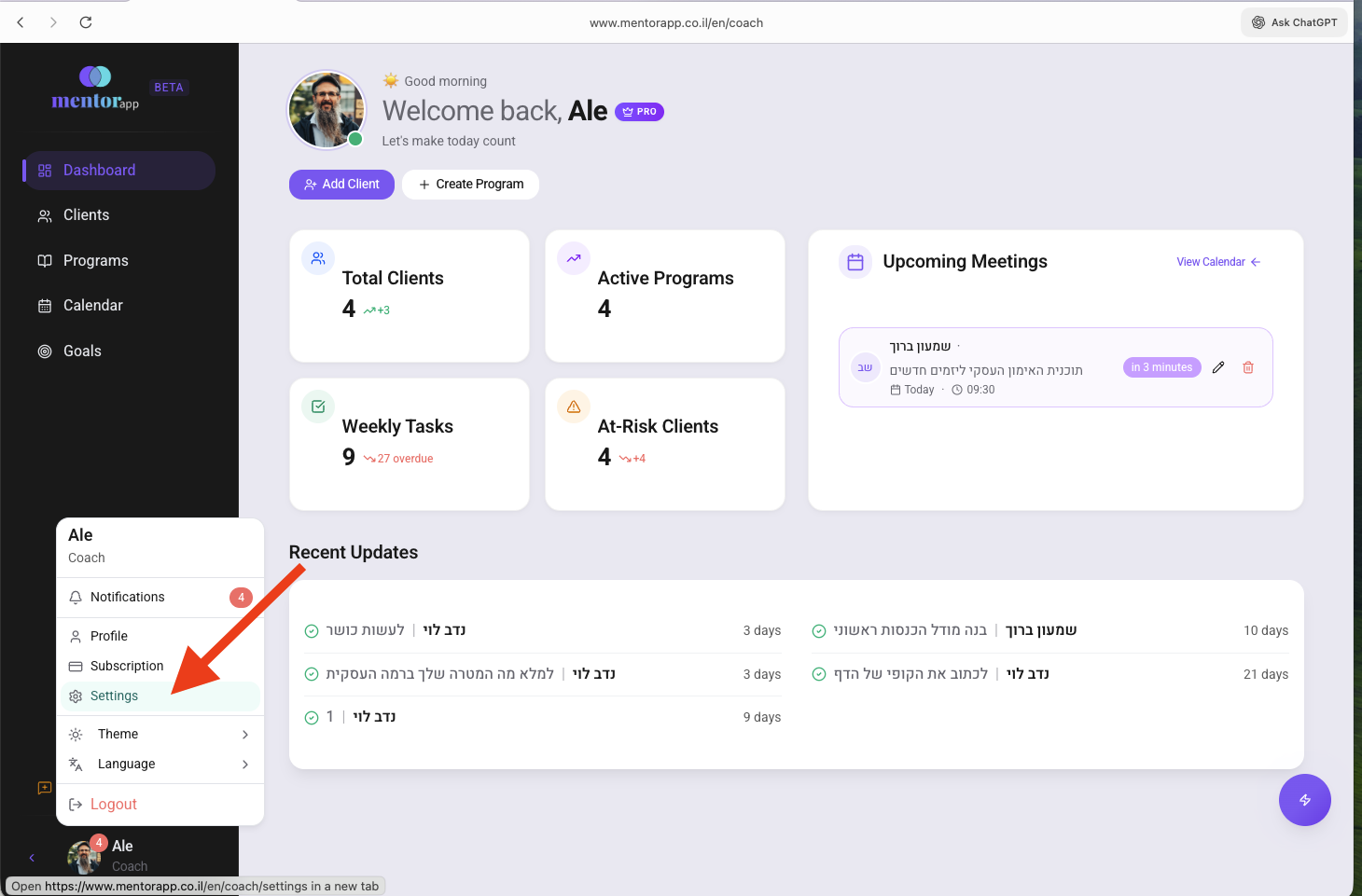
From the coach dashboard, click on your profile in the sidebar to open the menu, then select Settings.
2 Open Integrations
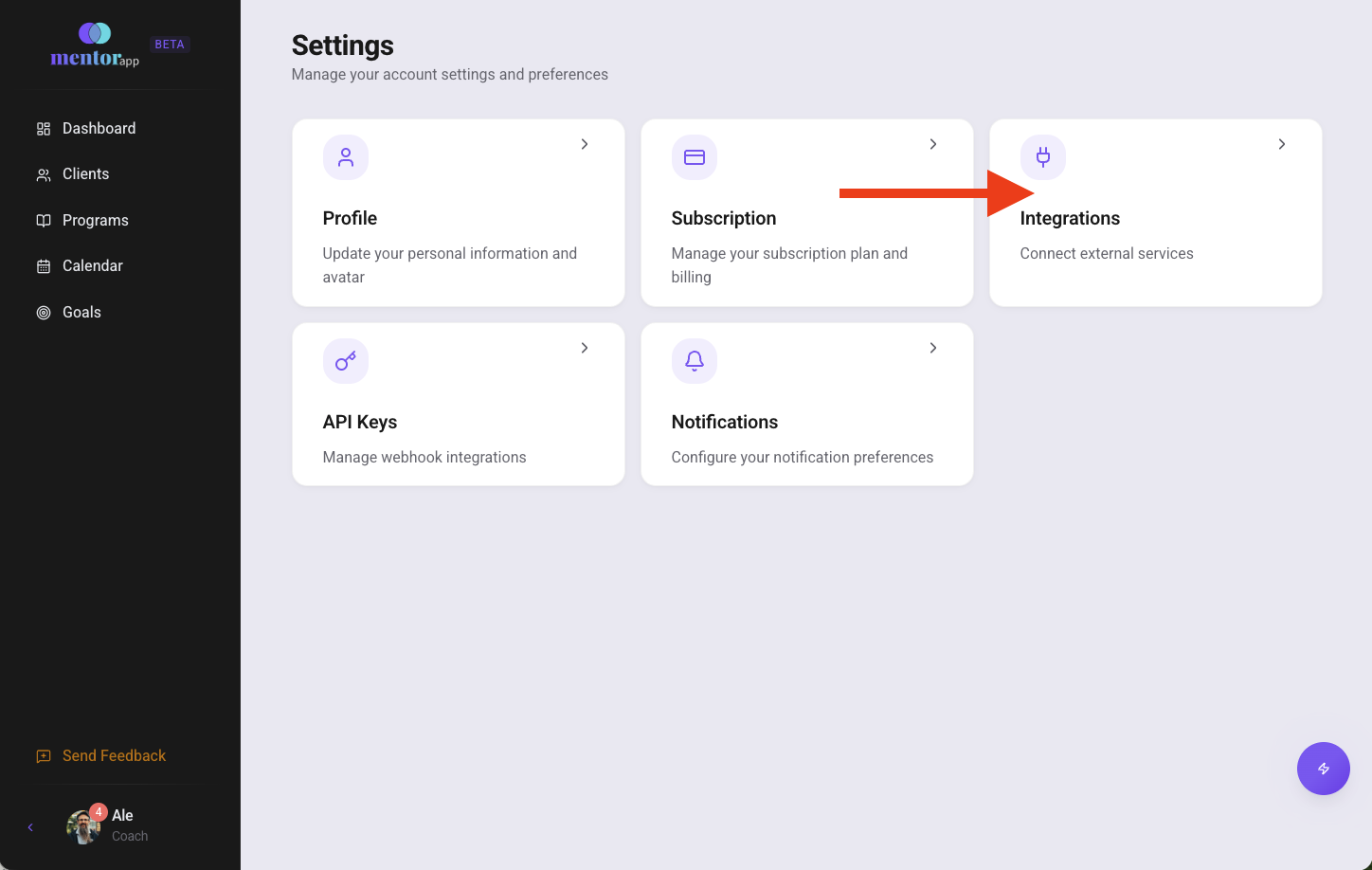
On the Settings page, click on the Integrations card.
3 Connect Zoom
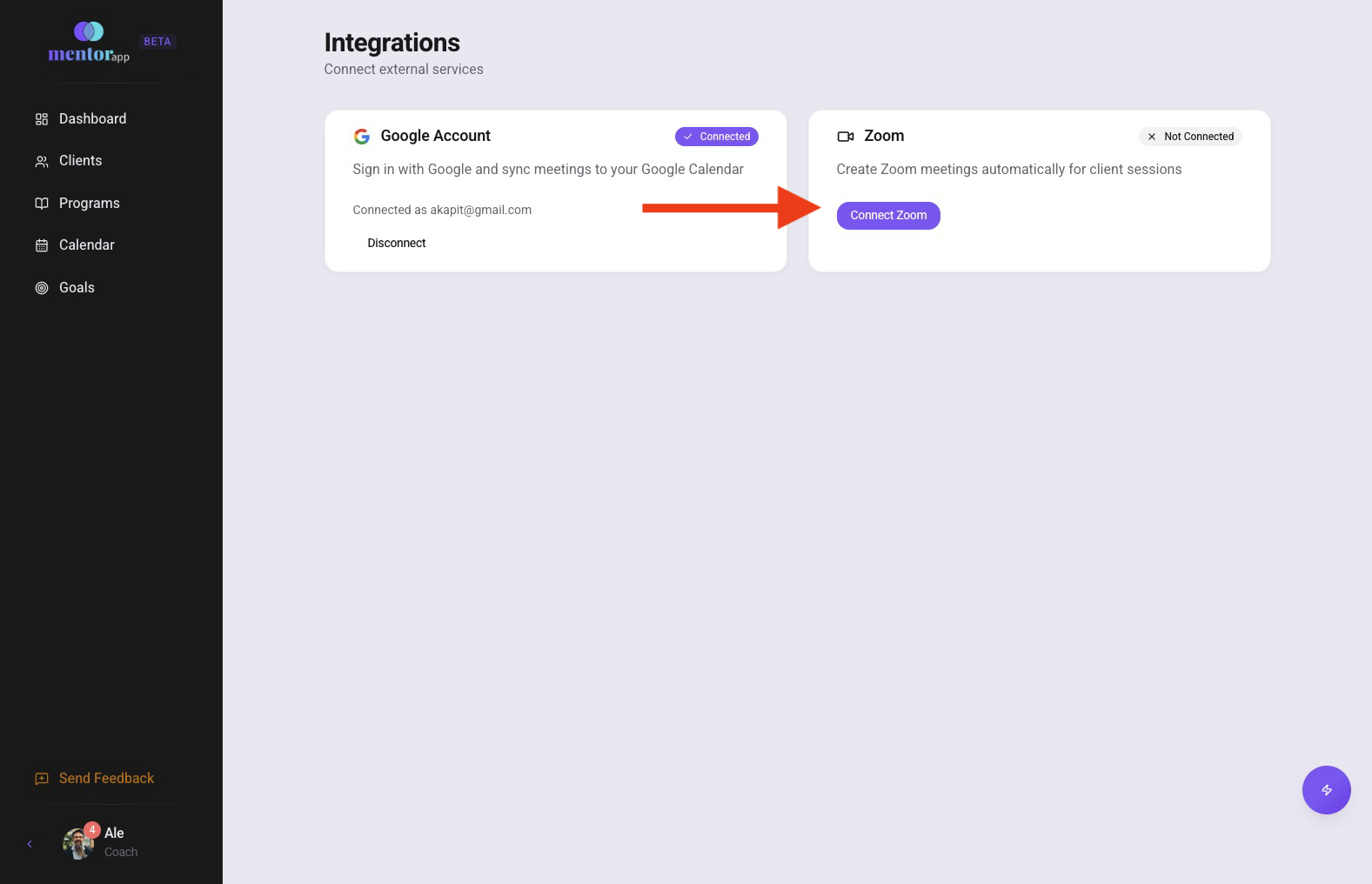
On the Integrations page, find the Zoom card and click Connect Zoom.
4 Allow on Zoom's consent screen
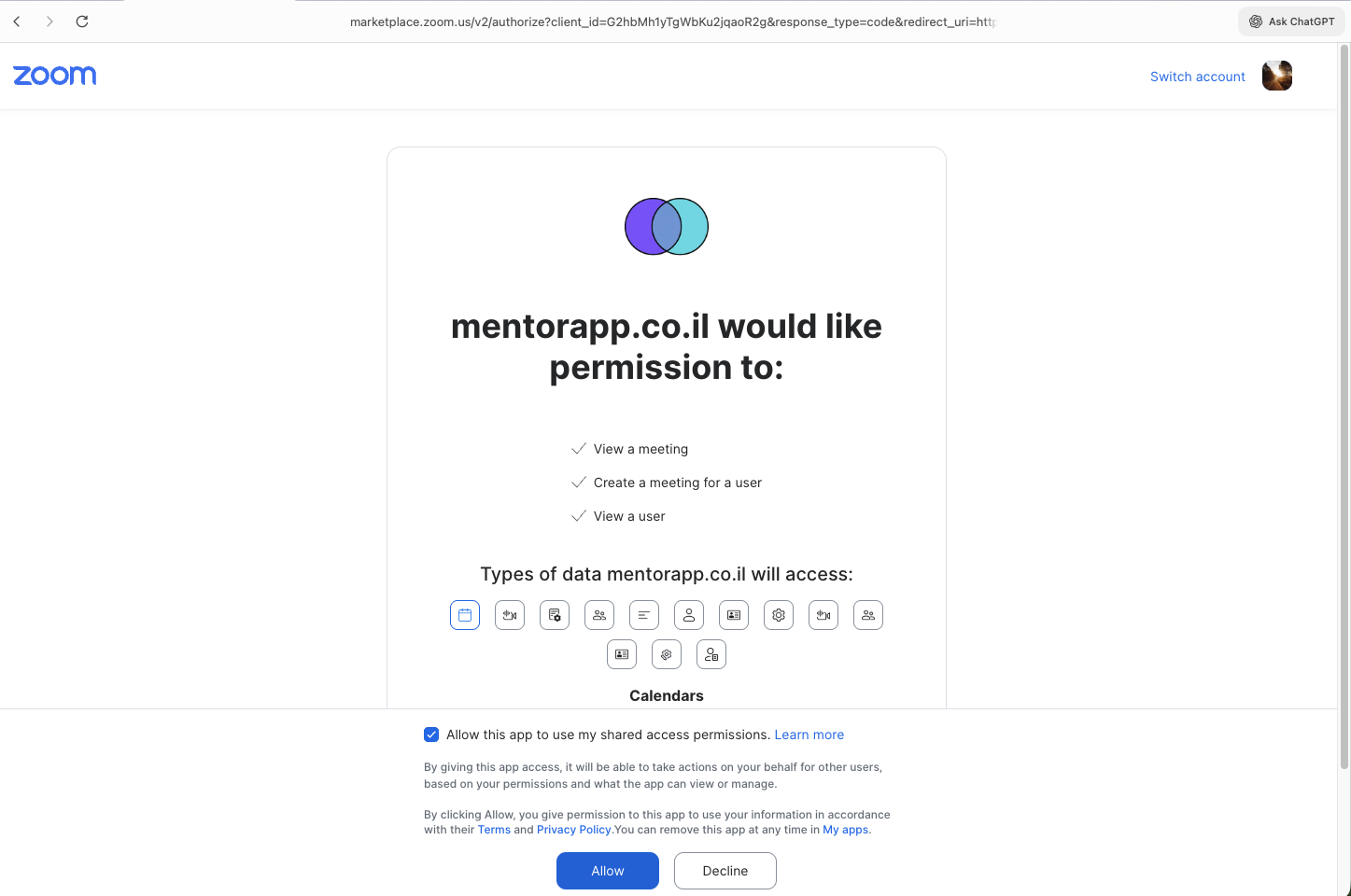
You'll be redirected to Zoom's own authorization page, showing the permissions MentorWay.ai is requesting (listed below). Click Allow to grant access.
5 Connection complete
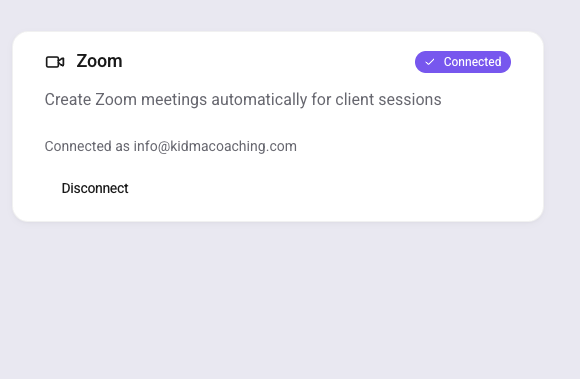
You're redirected back to MentorWay.ai's Integrations page. The Zoom card now shows a Connected badge along with the connected Zoom account's email address.
Option B — Starting from the Zoom App Marketplace
1 Add the app on Zoom
From the MentorWay.ai listing on the Zoom App Marketplace, click Add (or Visit Site to Add).
2 Log in to MentorWay.ai
You'll land on MentorWay.ai. If you aren't already signed in, log in to your coach account.
3 Connect from Settings
Go to Settings → Integrations and click Connect Zoom to complete the same authorization steps as Option A above (steps 4–5).
Permissions requested
MentorWay.ai's Zoom app requests the following scopes. Each maps to a specific action inside the product — we don't request anything broader than what these features need:
| Scope | Used for |
|---|
user:read:user |
Reading your Zoom account's user ID and email address right after you connect, so MentorWay.ai can show which Zoom account is linked (e.g. "Connected as you@example.com"). |
meeting:write:meeting |
Creating a Zoom meeting when you select "Zoom" as the meeting type for a client session, updating that meeting when you reschedule or change its duration, and deleting it if you cancel the session or switch it to a different meeting type. |
meeting:read:meeting |
Allows MentorWay.ai to read back details of meetings it created on your behalf via the Zoom API (for example, to confirm a meeting's current settings). MentorWay.ai does not read or list meetings you created outside of the app. |
Usage
Once Zoom is connected, here's what each feature does and what it needs.
Creating a Zoom meeting for a client session
Use case: schedule a client session with an auto-generated Zoom link, without leaving MentorWay.ai.
Prerequisites: Zoom connected; you're creating the meeting from a client's page.
Step 1: Open a client and start a new meeting
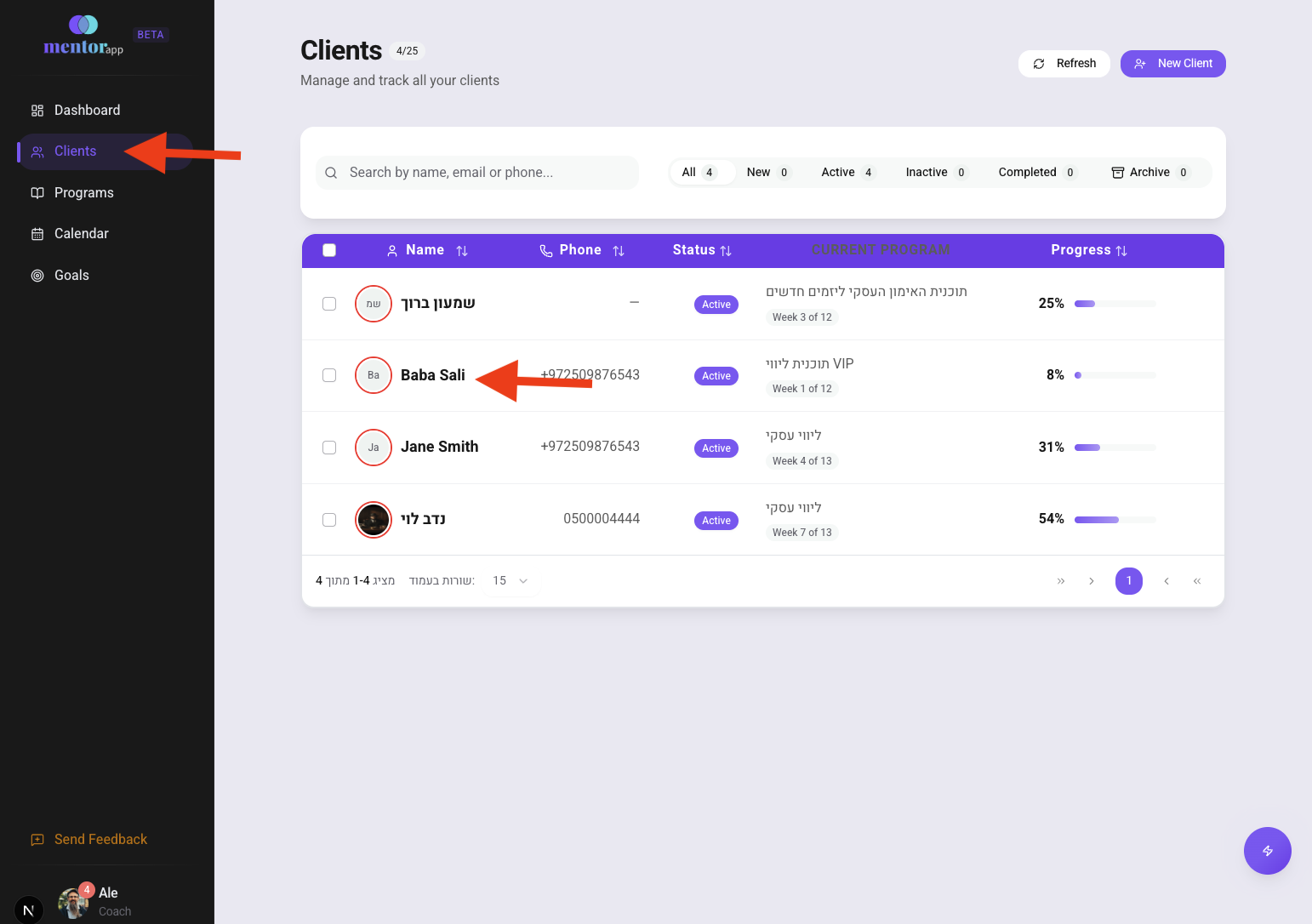
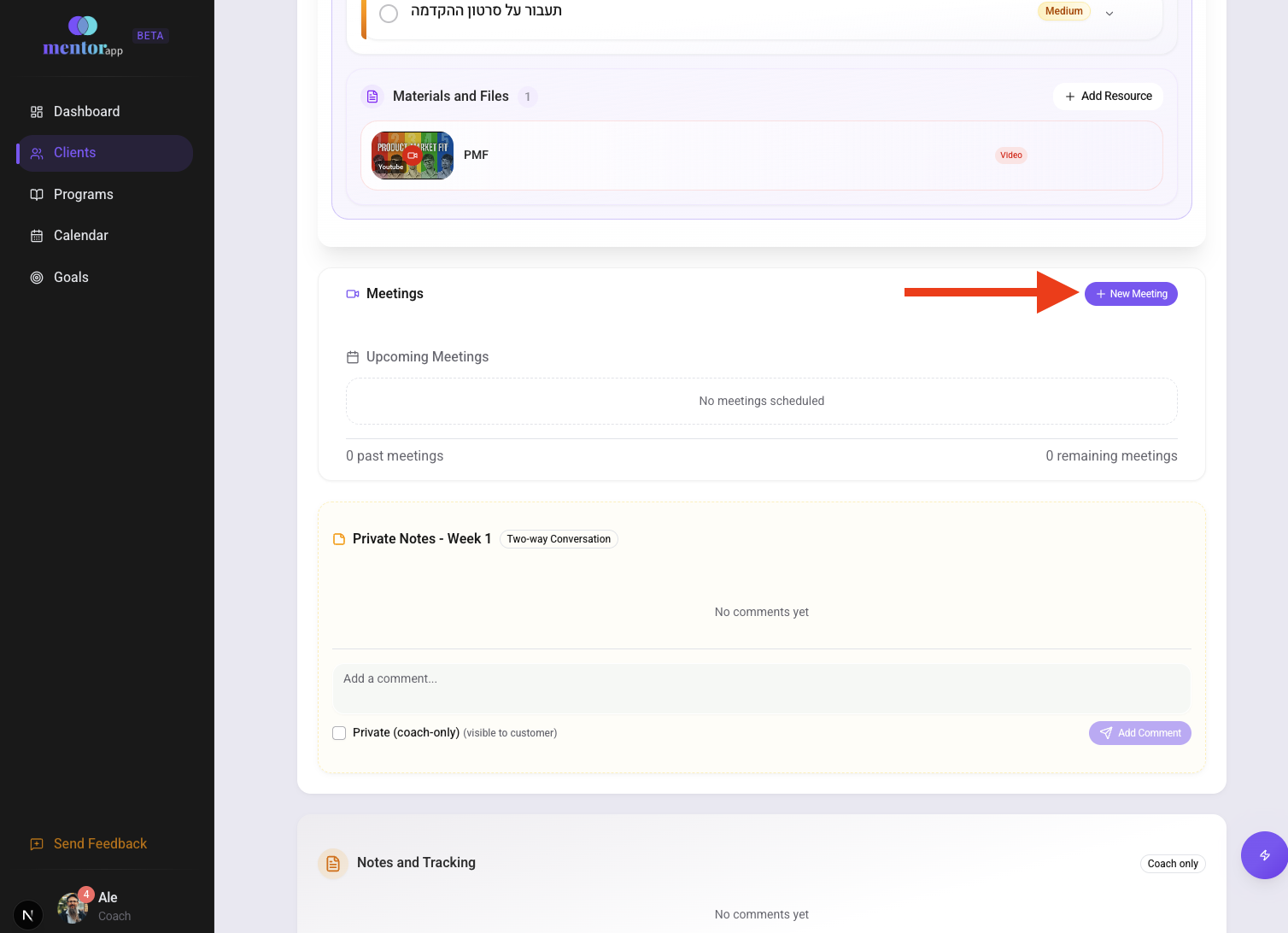
Go to Clients in the sidebar, open a client's detail page, then click + New Meeting in the Meetings section.
Step 2: Choose Zoom as the meeting type
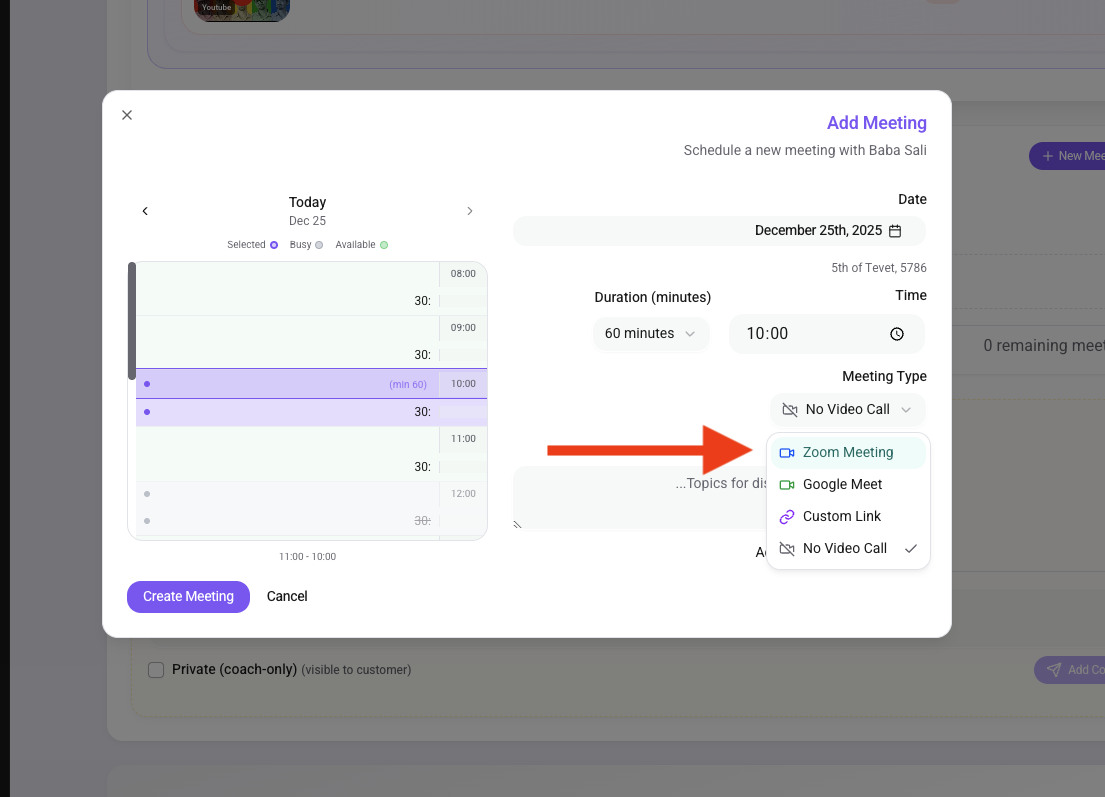
In the meeting dialog's Meeting Type selector, choose Zoom (this option is disabled if Zoom isn't connected). Set the date, time, and duration, then save.
MentorWay.ai automatically:
- Creates the meeting via the Zoom API with a waiting room enabled and the host required to start it first.
- Generates a join link, a host start link, and (if set) a password.
- Stores those details against the session and shows the client's join link on their dashboard.
Editing or rescheduling a session
Use case: change a session's date, time, or duration after it's been created.
Prerequisites: the session already has a Zoom meeting attached.
Changing the date, time, or duration of a Zoom session updates the same Zoom meeting via the Zoom API — the client's existing join link keeps working, you don't get a new link. This update is best-effort: if the Zoom API call fails for any reason, your change is still saved in MentorWay.ai so the session isn't blocked, but the Zoom-side meeting may be out of sync until you edit it again.
If you change the meeting type away from Zoom (to Google Meet, a custom link, or no link), MentorWay.ai deletes the old Zoom meeting via the API and clears the stored Zoom details. Switching a session's type to Zoom creates a brand-new Zoom meeting.
Deleting or cancelling a session
Use case: remove a session that's no longer happening.
Deleting a single (non-recurring) session that has a Zoom meeting attached also deletes that meeting from your Zoom account via the API (best-effort — the session is removed from MentorWay.ai either way).
Known limitation: deleting an entire recurring series removes it from MentorWay.ai and cancels any recording/transcription bots, but does not currently delete the underlying Zoom meeting from your Zoom account. If you don't want it lingering in your Zoom account, remove it manually from your Zoom meeting list.
Recurring (series) meetings
Use case: set up a repeating weekly/biweekly coaching session in one step.
For a recurring series, MentorWay.ai creates one Zoom meeting up front and every occurrence in the series shares that same join link, unless you later edit a single occurrence's meeting type independently — that occurrence then gets its own separate Zoom meeting.
How the client joins
The client only ever sees the Zoom join link on their MentorWay.ai dashboard for their upcoming session — never the host start link or the meeting password field, both of which stay coach-only. They click the link to join at the scheduled time like any Zoom meeting.
Recording & transcription (Premium)
Use case: automatically record and/or transcribe a client session for later review.
Prerequisites: a Premium subscription; the session's meeting type is Zoom or Google Meet with a link already generated; transcription must be turned on before recording can be turned on.
This feature does not use Zoom's own cloud recording (MentorWay.ai explicitly disables it when creating the meeting). Instead, when you turn transcription on for a Zoom session, MentorWay.ai schedules a separate bot ("Mentor Assistant") to join the meeting at its scheduled time using the same join link a client would use, and it records/transcribes from inside the call.
Because MentorWay.ai enables a waiting room and requires the host to start the meeting first, you need to manually admit "Mentor Assistant" from the Zoom waiting room once you start the session — otherwise it never joins, and no recording or transcript is produced.
Removing the app
Disconnect inside MentorWay.ai
Go to Settings → Integrations and click Disconnect on the Zoom card.
Remove from your Zoom account
You can also remove MentorWay.ai directly from Zoom: sign in to the Zoom App Marketplace, go to Manage → Added Apps, find MentorWay.ai, and click Remove.
We recommend disconnecting from inside MentorWay.ai first — Zoom does not currently notify MentorWay.ai when you remove the app on Zoom's side, so if you only remove it from Zoom, the Integrations page may keep showing "Connected" until you either click Disconnect there as well, or the connection naturally fails the next time MentorWay.ai tries to use it.
What happens when you disconnect
- New sessions can no longer get a Zoom link — the Zoom meeting type becomes unavailable until you reconnect.
- Zoom meetings already created before disconnecting are not affected: they remain in your Zoom account and continue to work normally.
- Join links already saved on past and upcoming sessions in MentorWay.ai stay visible — disconnecting does not remove them from your session history.
What we store, and what disconnecting removes
While connected, MentorWay.ai stores: your Zoom user ID and account email, an OAuth access token and refresh token, and — per meeting you create — the Zoom meeting ID, join link, host start link, and password.
Clicking Disconnect:
- Attempts to revoke the stored access token directly with Zoom (best-effort; the disconnect still completes even if Zoom is unreachable).
- Immediately deletes the stored access token, refresh token, and token expiry from our database.
- Marks the connection as disabled.
We keep your Zoom user ID and account email on the (now-disabled) connection record — only so MentorWay.ai can show which account you were previously connected as, and so support can look up your connection if you contact us. The Zoom meeting ID, join link, start link, and password already stored on your individual past and upcoming sessions are also kept, as part of your session history.
If you'd like all of that fully deleted — your Zoom user ID, account email, and per-session Zoom meeting metadata — email us at info@mentorway.ai and we'll remove it. See our Privacy Policy for more on how we handle your data.
Troubleshooting
Zoom meeting created without a link, or "Zoom connection expired"
Zoom refresh tokens expire automatically after 90 days without use. If your Zoom connection has gone stale, go to Settings → Integrations, click Disconnect, then Connect Zoom again to re-authorize.
"Authorization failed" / invalid state after clicking Allow on Zoom
This usually means the connection attempt timed out (the authorization step needs to be completed within about 10 minutes of clicking Connect Zoom) or your browser blocked the cookie MentorWay.ai uses to verify the request. Go back to Settings → Integrations, make sure cookies are allowed for mentorway.ai, and click Connect Zoom again.
Not seeing the Connect button
The Zoom integration only appears on the coach dashboard. Make sure you're logged in with a coach account, not a client account.
Recording or transcript never showed up
Check that you manually admitted "Mentor Assistant" from the Zoom waiting room when the session started — see Recording & transcription above.
Still stuck?
Contact us at mentorway.ai/support or email info@mentorway.ai.